How To Create A Post In WordPress Step By Step Guide
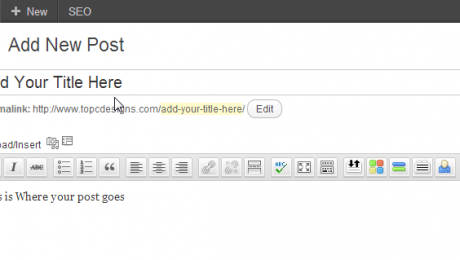
Creating your first WordPress Blog Post can be a bit intimidating, but with a little knowledge on what each button does soon you will be an old pro at blogging. WordPress has an amazing set of features to give you the ability to publish great blog posts with relative ease. Here is a basic tutorial to help you get started.
Step 1. Log Into your WordPress Blog

Go to your website and add /wp-login.php this will bring you to your WordPress log in page.

Step 2. Run Your Mouse Over Post Then Click Add New

Step 3. Creating Your Blog Post
You will now be able to create your blog post. There are several buttons that will help you with creating your blog post. Please see some examples below.

Show/Hide Kitchen Sink Button -If you don’t see all of your tabs simple click the hide/show kitchen sink. This will expand the menu and show you all your button options.

Word Button – If you have created your blog post in Microsoft Word and want to past from word, there is a button for that as well. Click the button ad past your blog post into the form and it will then past it into your Editor.

HTML Tab – If you have created your post in HTML and would like to enter the HTML code click on the HTML Tab beside the Visual Tab.

Add Image – To add an image to your post click the Add Media button and select upload. You can add images from your computer or copy and past a URL from the internet.

Formatting Button – To add H2 Tags or other formatting buttons, highlight with your mouse what you would like to format and then click the Paragraph drop down menu and select the type of formatting you want to use.

Step 4. Selecting Category
On the left hand side of your editor you will see Categories WordPress allow you to create as many categories as you like. To Create a new category click on Add New Category right blow the categories list.

Step 5. Adding Tags
What are Tags? Tags provide a useful way to group related posts together and to quickly tell readers what a post is about. Tags also make it easier for people to find your content. Tags are similar to, but more specific than, categories. On your left hand side of your page under Categories you will see the Tags. Fill out your tag one by one or separate each tag with a coma and then click add.


Step 6. Preview Blog Post
Once you are completed your blog and are happy with it, you can preview what you blog post looks like before you save it as a draft to continue to work on it or publish it. To Preview your blog post click on the preview button under Publish.

Step 7 – Save As A Draft Or Publish Your Blog Post
It is now time to save your blog post as a draft and work on it later or publish your blog post. The beauty of WordPress is that you can edit your blog post at anytime and WordPress will also save a history of all your blog post edits. To Save as a draft click Save Draft under the Publish Menu. To Publish your post click the Publish Button under the Publish Menu.


Step 8. Preview Your Post
After you have published your blog you will see in yellow highlight above your post where it says Post Published. Click the Link To View your post. Remember every time you make changes to your blog post make sure you click the update button Under the Publish Menu.

- Published in News