Creating your first WordPress Blog Post can be a bit intimidating, but with a little knowledge on what each button does soon you will be an old pro at blogging. WordPress has an amazing set of features to give you the ability to publish great blog posts with relative ease. Here is a basic tutorial to help you get started.
Step 1. Log Into your WordPress Blog

Go to your website and add /wp-login.php this will bring you to your WordPress log in page.

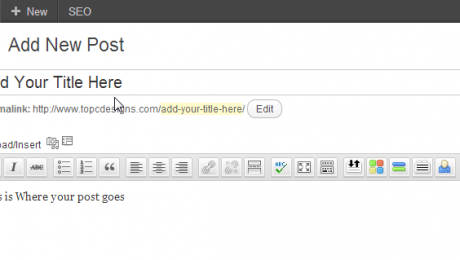
Step 2. Run Your Mouse Over Post Then Click Add New

Step 3. Creating Your Blog Post
You will now be able to create your blog post. There are several buttons that will help you with creating your blog post. Please see some examples below.

Show/Hide Kitchen Sink Button -If you don’t see all of your tabs simple click the hide/show kitchen sink. This will expand the menu and show you all your button options.

Word Button – If you have created your blog post in Microsoft Word and want to past from word, there is a button for that as well. Click the button ad past your blog post into the form and it will then past it into your Editor.

HTML Tab – If you have created your post in HTML and would like to enter the HTML code click on the HTML Tab beside the Visual Tab.

Add Image – To add an image to your post click the Add Media button and select upload. You can add images from your computer or copy and past a URL from the internet.

Formatting Button – To add H2 Tags or other formatting buttons, highlight with your mouse what you would like to format and then click the Paragraph drop down menu and select the type of formatting you want to use.

Step 4. Selecting Category
On the left hand side of your editor you will see Categories WordPress allow you to create as many categories as you like. To Create a new category click on Add New Category right blow the categories list.

Step 5. Adding Tags
What are Tags? Tags provide a useful way to group related posts together and to quickly tell readers what a post is about. Tags also make it easier for people to find your content. Tags are similar to, but more specific than, categories. On your left hand side of your page under Categories you will see the Tags. Fill out your tag one by one or separate each tag with a coma and then click add.


Step 6. Preview Blog Post
Once you are completed your blog and are happy with it, you can preview what you blog post looks like before you save it as a draft to continue to work on it or publish it. To Preview your blog post click on the preview button under Publish.

Step 7 – Save As A Draft Or Publish Your Blog Post
It is now time to save your blog post as a draft and work on it later or publish your blog post. The beauty of WordPress is that you can edit your blog post at anytime and WordPress will also save a history of all your blog post edits. To Save as a draft click Save Draft under the Publish Menu. To Publish your post click the Publish Button under the Publish Menu.


Step 8. Preview Your Post
After you have published your blog you will see in yellow highlight above your post where it says Post Published. Click the Link To View your post. Remember every time you make changes to your blog post make sure you click the update button Under the Publish Menu.

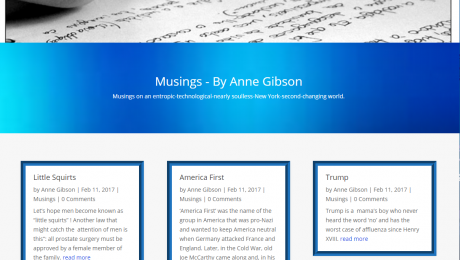
Are there tricks and secrets about how to create a great blog post? The answer is yes! There are many things you can do to increase your reading audience and create a great content rich blog post.
A Good Title Is Key:
Your title should include what your content is about. Think about what you yourself would type into a search engine when searching for information on your subject. You tile is going to be the first thing potential readers are going to see. Make sure to make it easy to read and not complicated. Keywords are also important in a title. You keywords will allow search engines to pick up your content easily, as well as be a great attention grabber.
First Line Should Grab Attention:
The first line of your blog post is where you want to draw your audience in. There are several ways you can do this.
- Ask a question, and then provide the answer to your question. People often will search the internet for advice or answers.
- Share a story or an analogy about your subject.
- Make your subject controversial get your readers revved up.
No Guts No Glory:
When you are writing your content, keep it simple; do not stuff your blog that the everyday Joe is not going to read. You do not want to bore or put your audience to sleep. Don’t make your blog post too long, on average anywhere between 300-500 words are great. Keep your flow of your blog smooth and easy, don’t do too much keyword stuffing. Be interesting; you want them coming back for more. Add a photo to your blog post. Make sure you proofread your blog post for any spelling mistakes. Open up the discussion and get readers involved by allowing comments. Last but not least promote your Blog, use your social networking to better increase your audience.

Christmas will be here before you know it. This is an Christmas Advertisement project that we completed for one of our clients to showcase Christmas Party Bookings. Contact Top C Designs Today For All Your Needs!


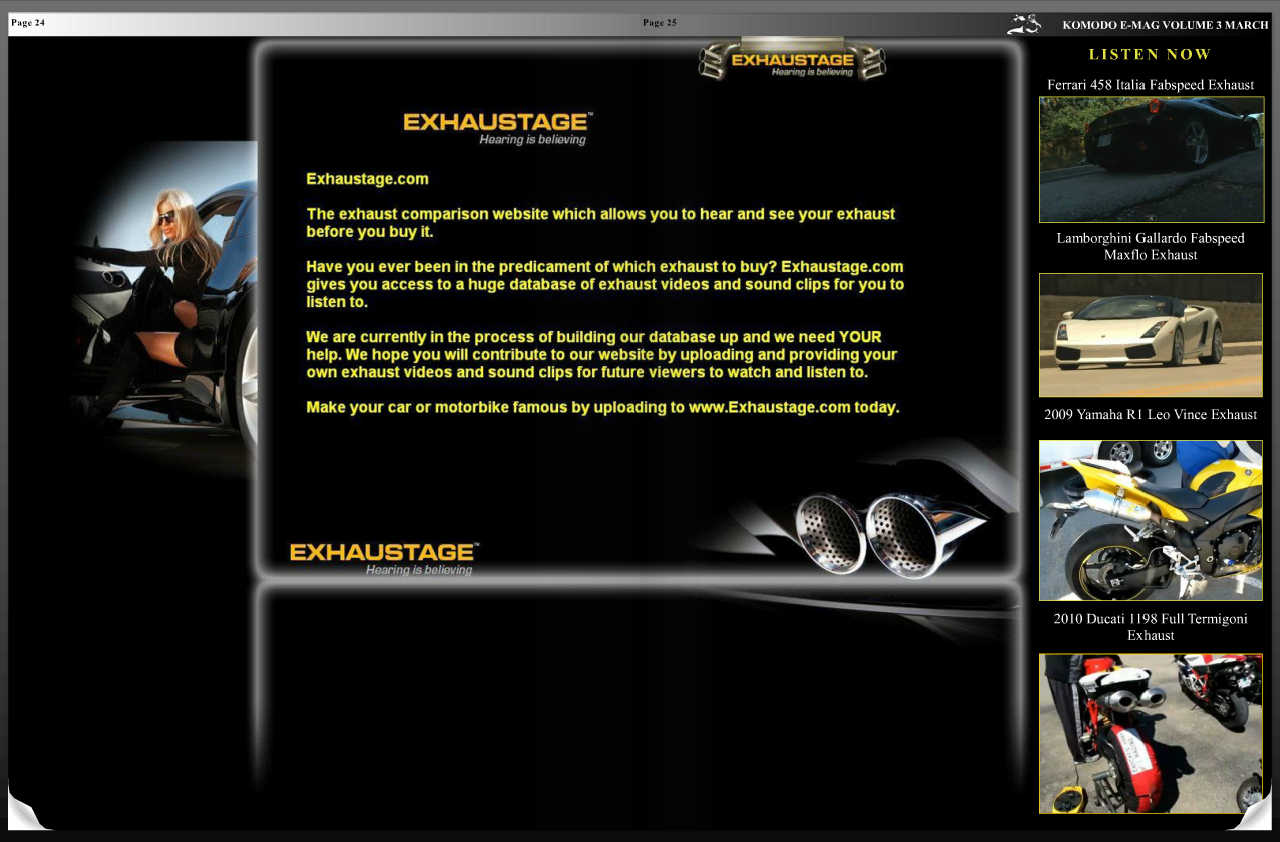
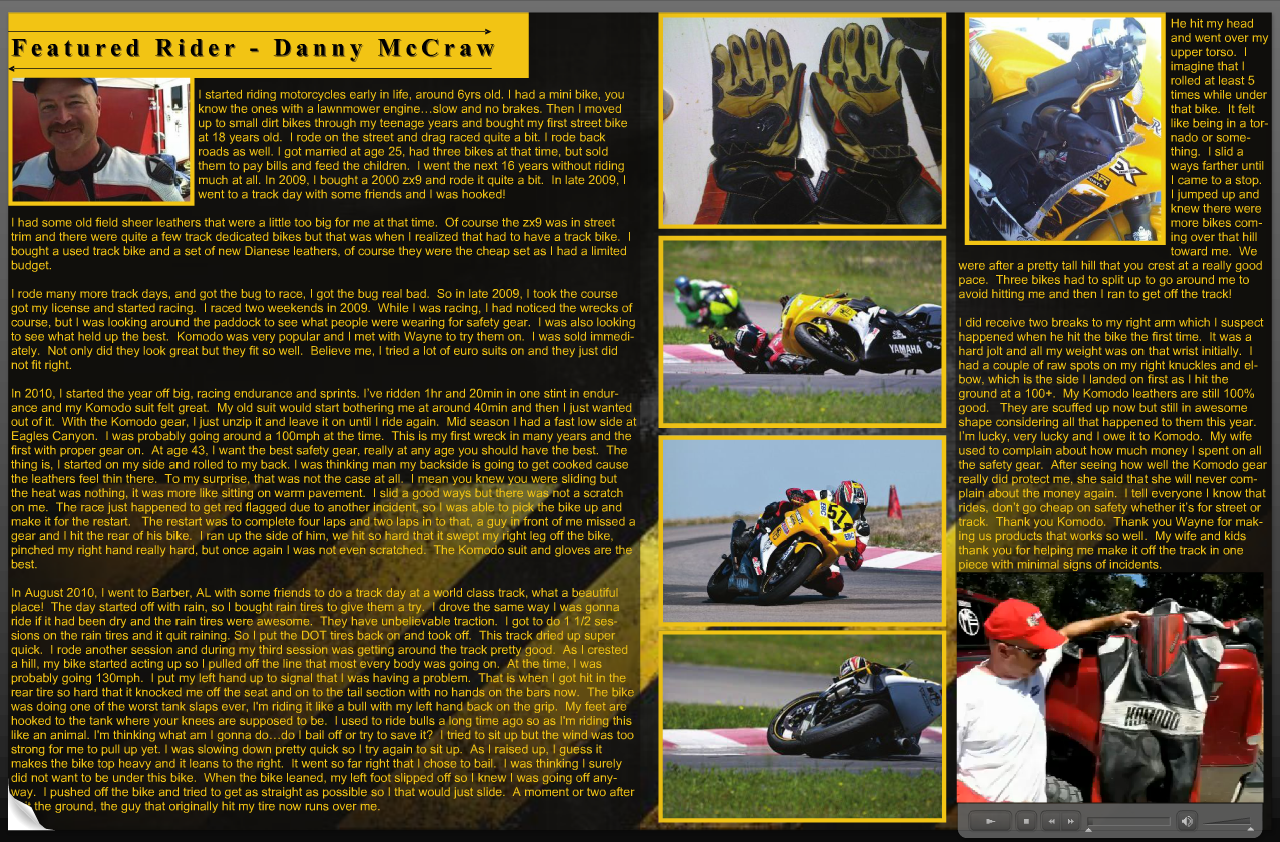
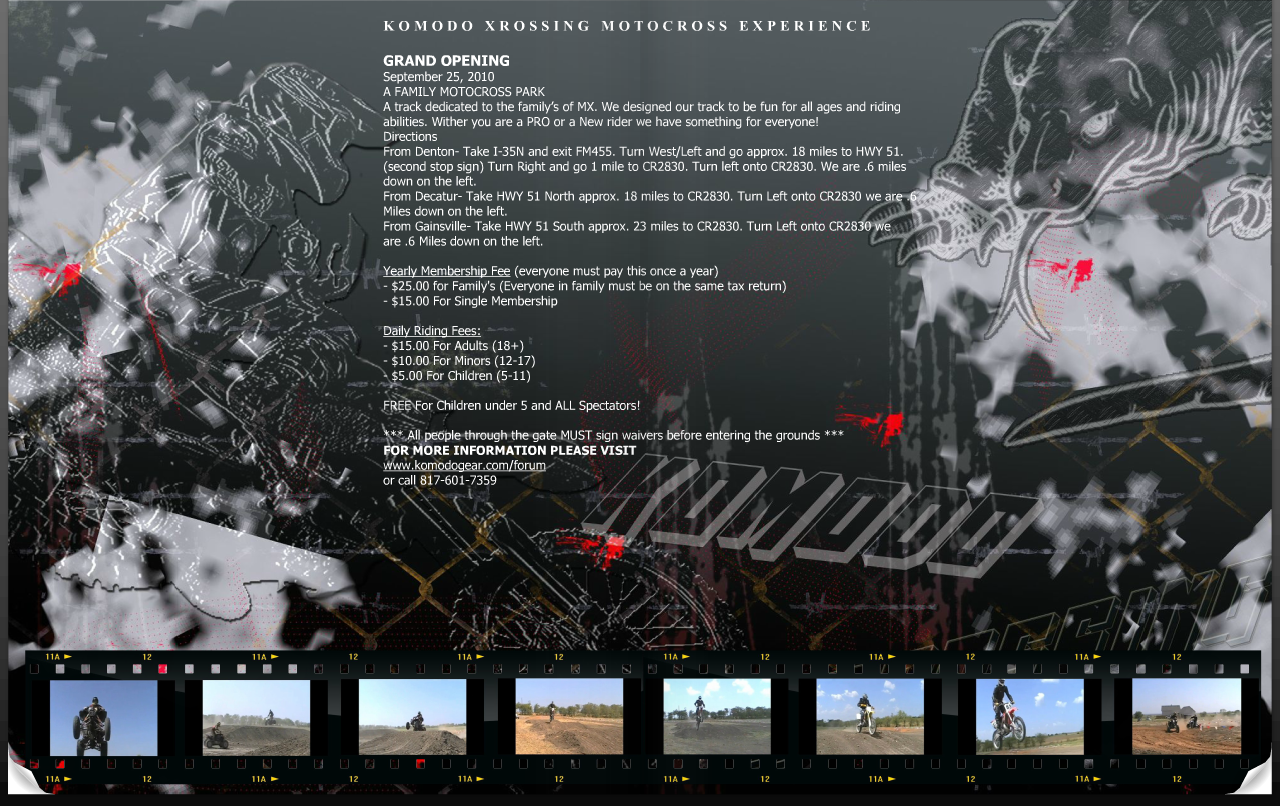
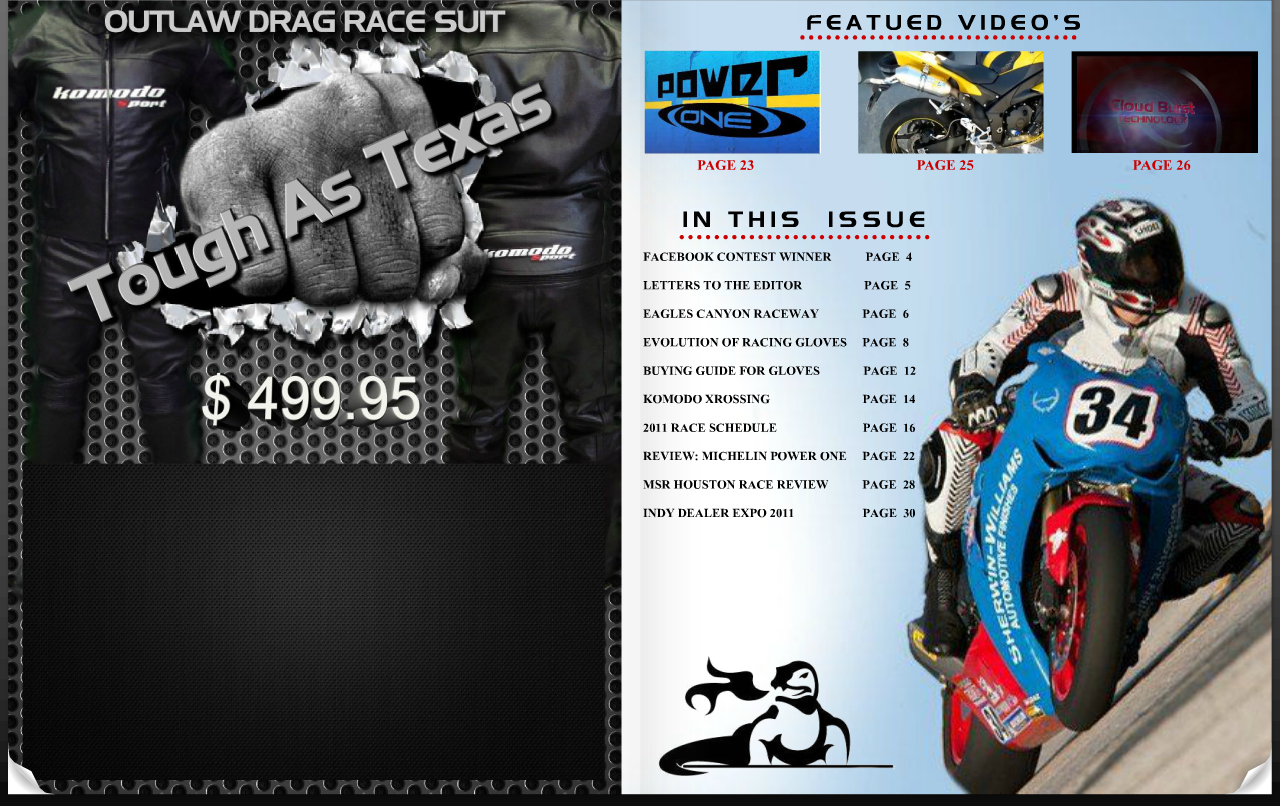
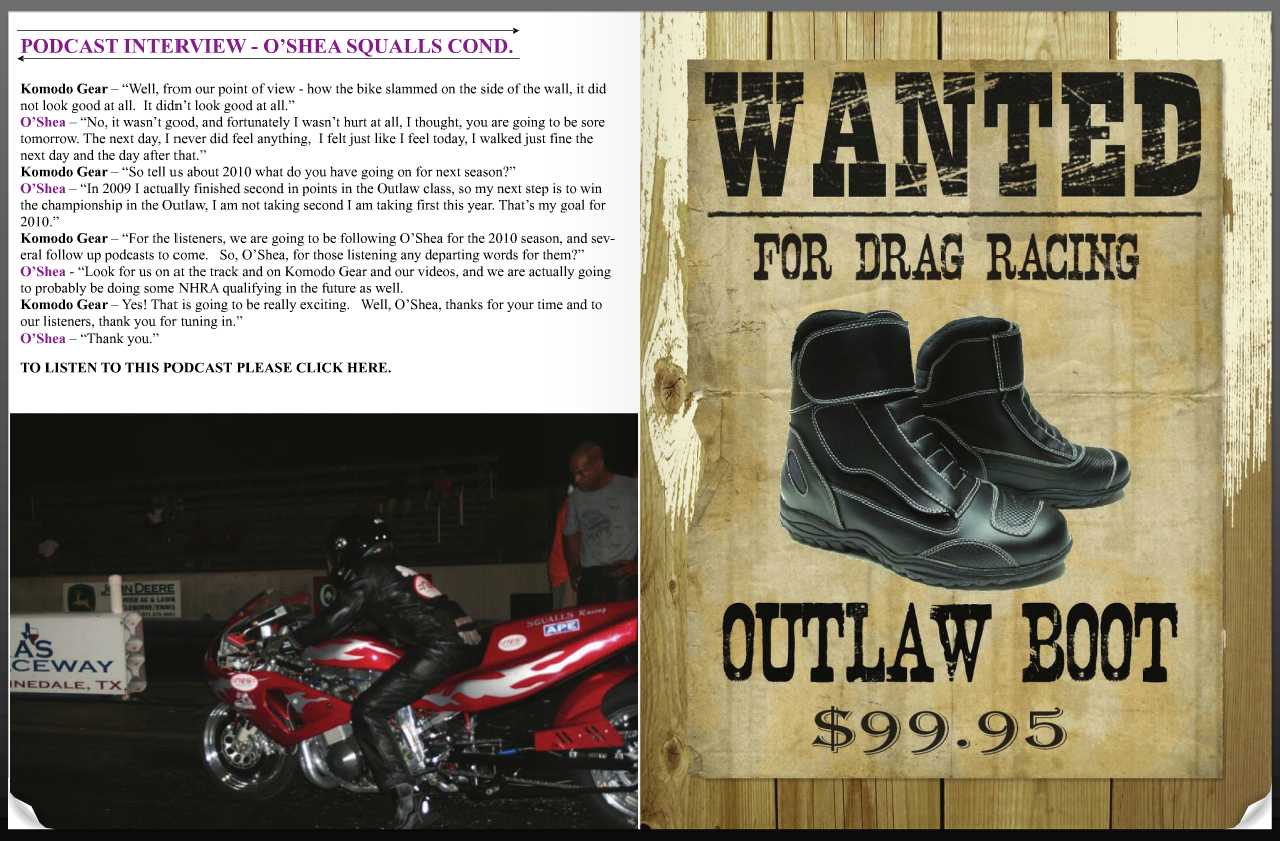
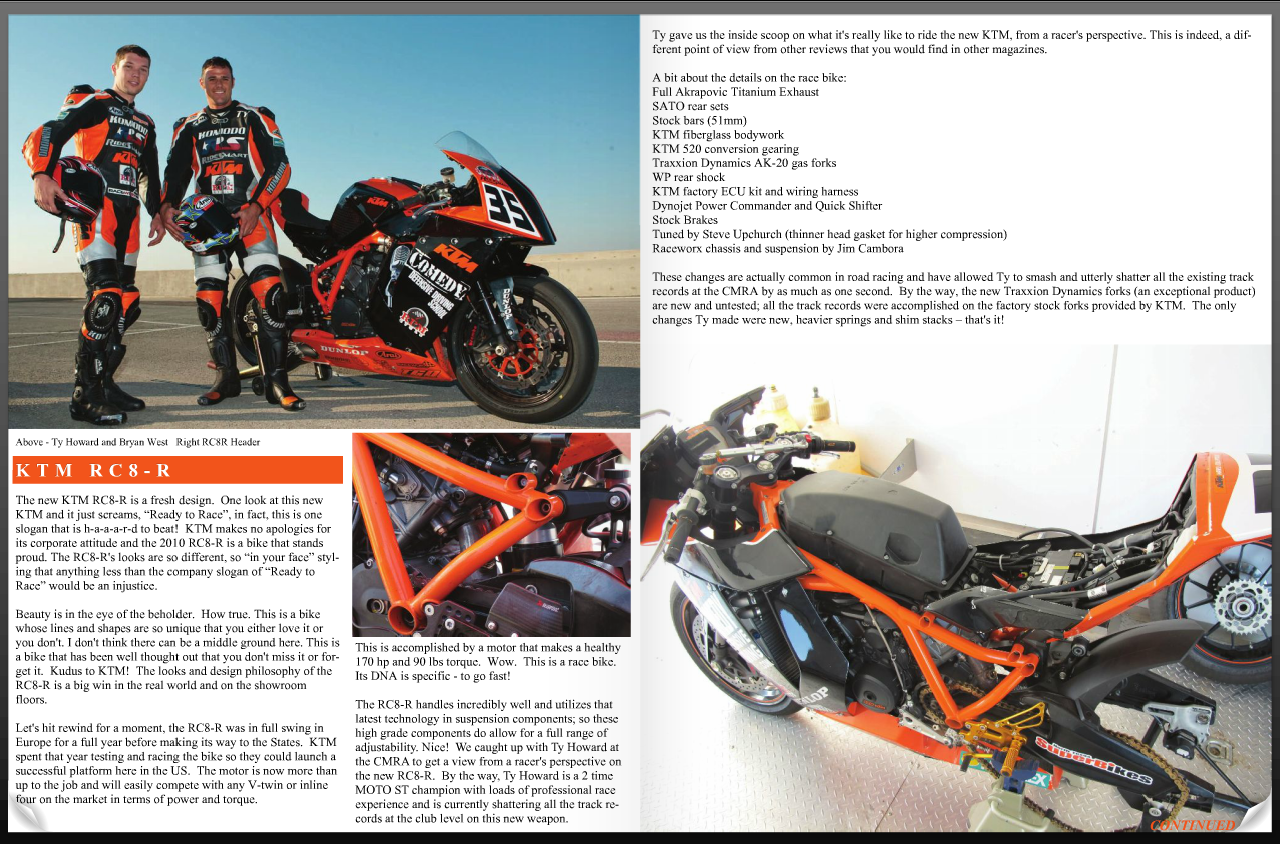
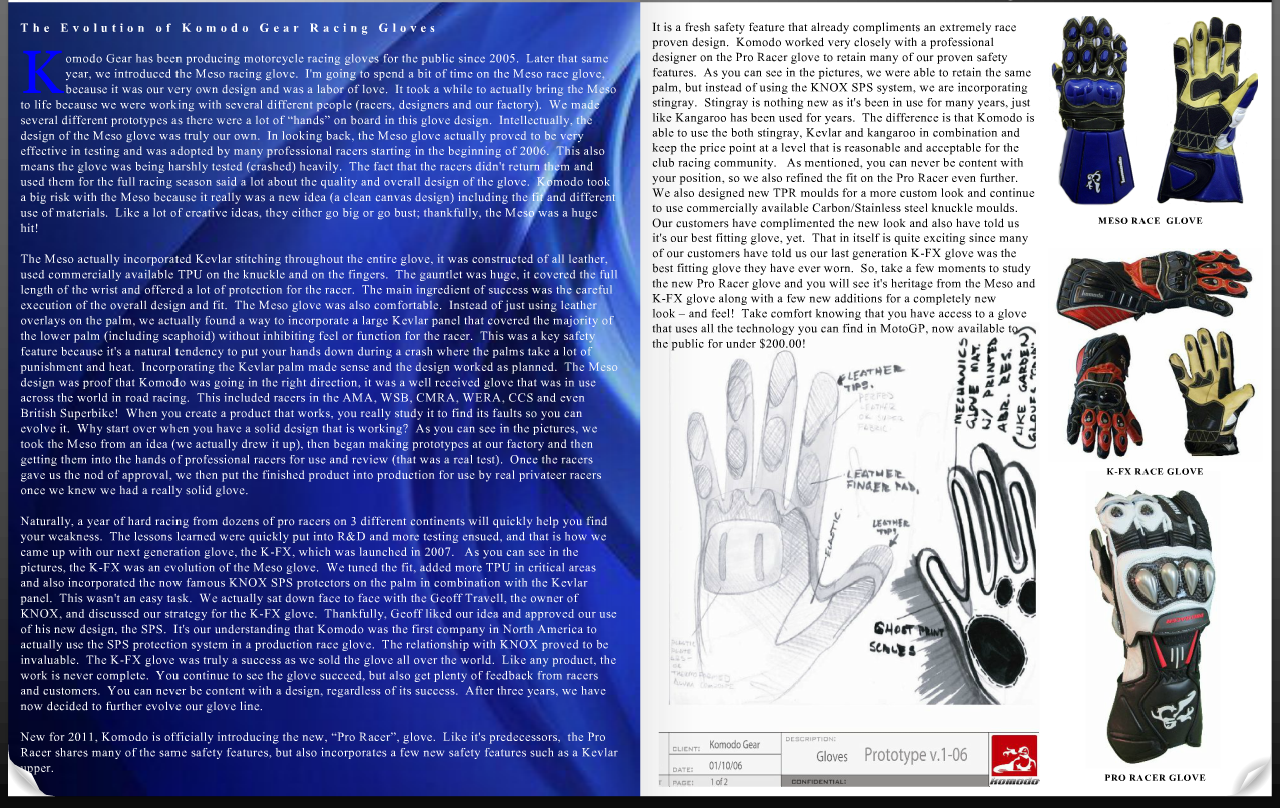
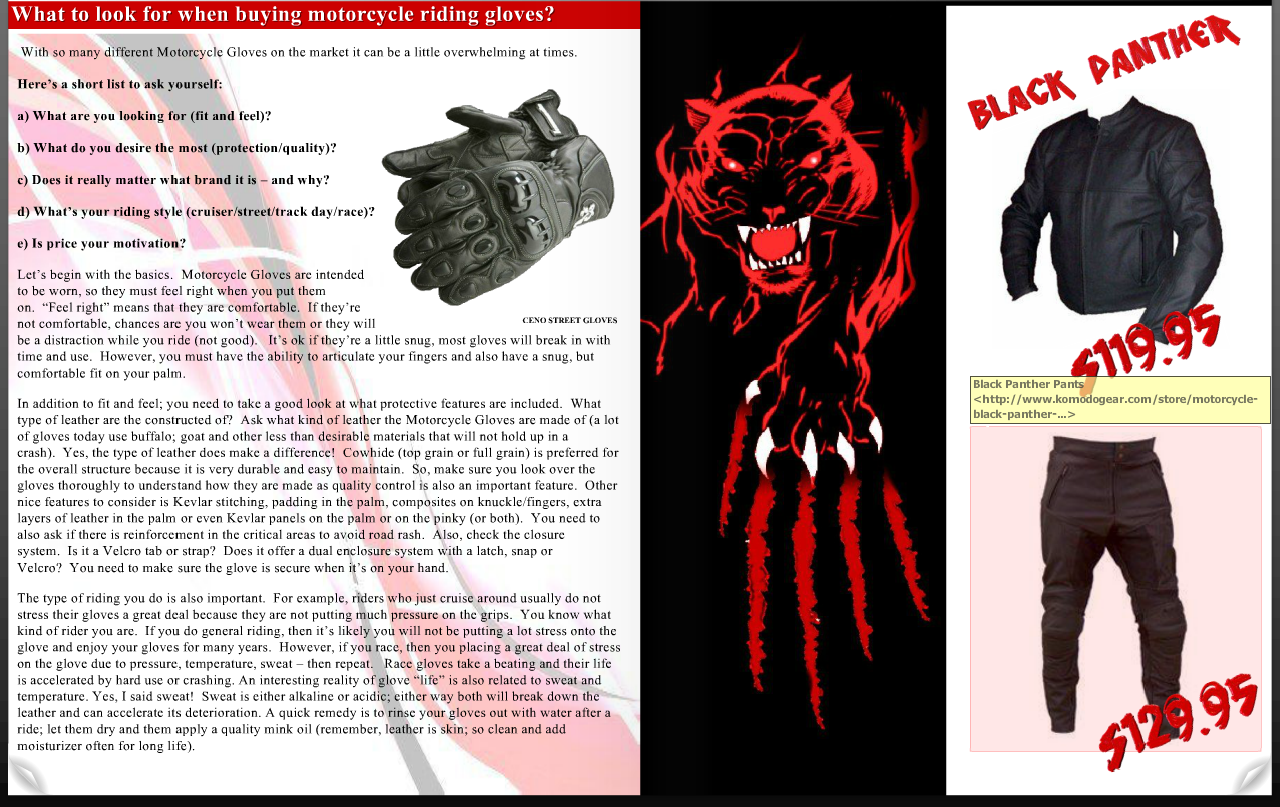
Top C Designs was approached by Komodo Gear to create an online E-Mag. Komodo Gear had so much social content it made sense to create a series of Online Magazines or also referred to as E-Mag’s so that customers and motorcycle enthusiast could read all the content in one place.
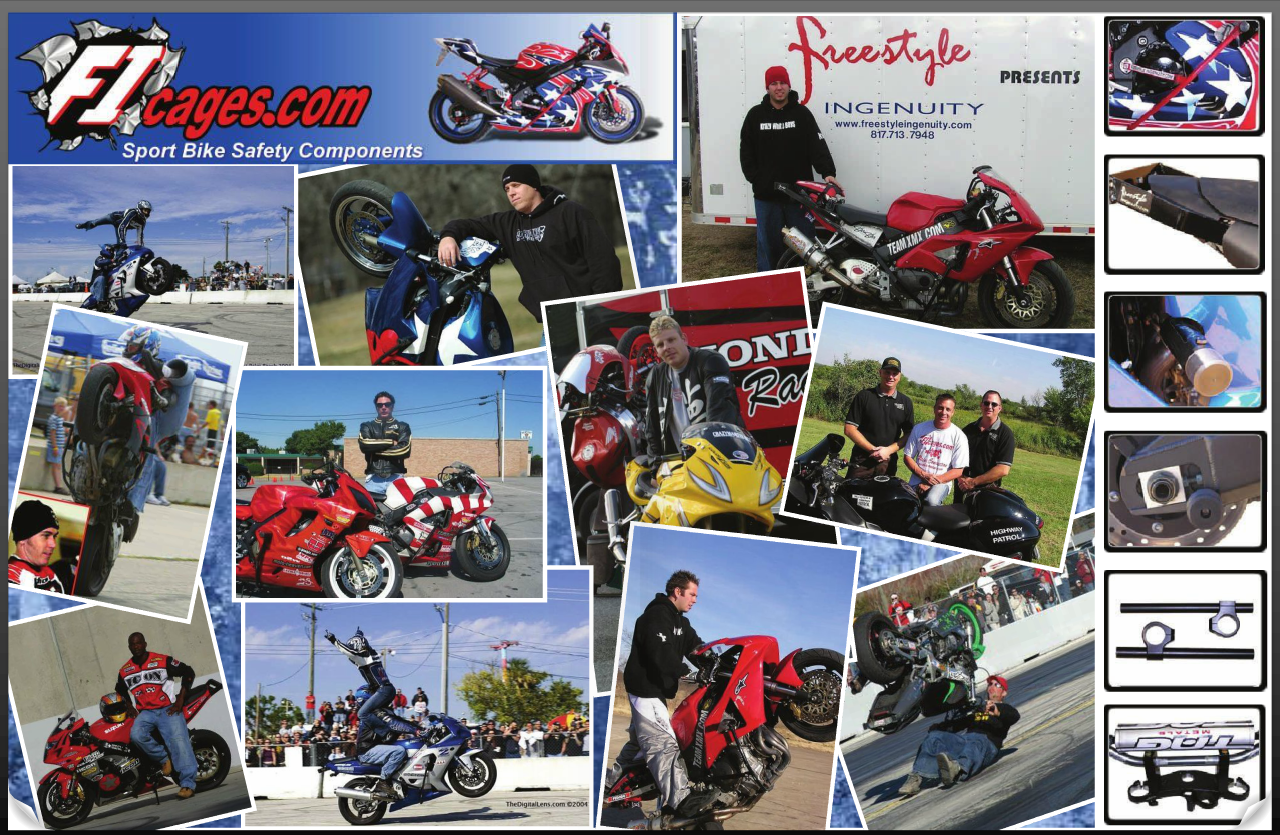
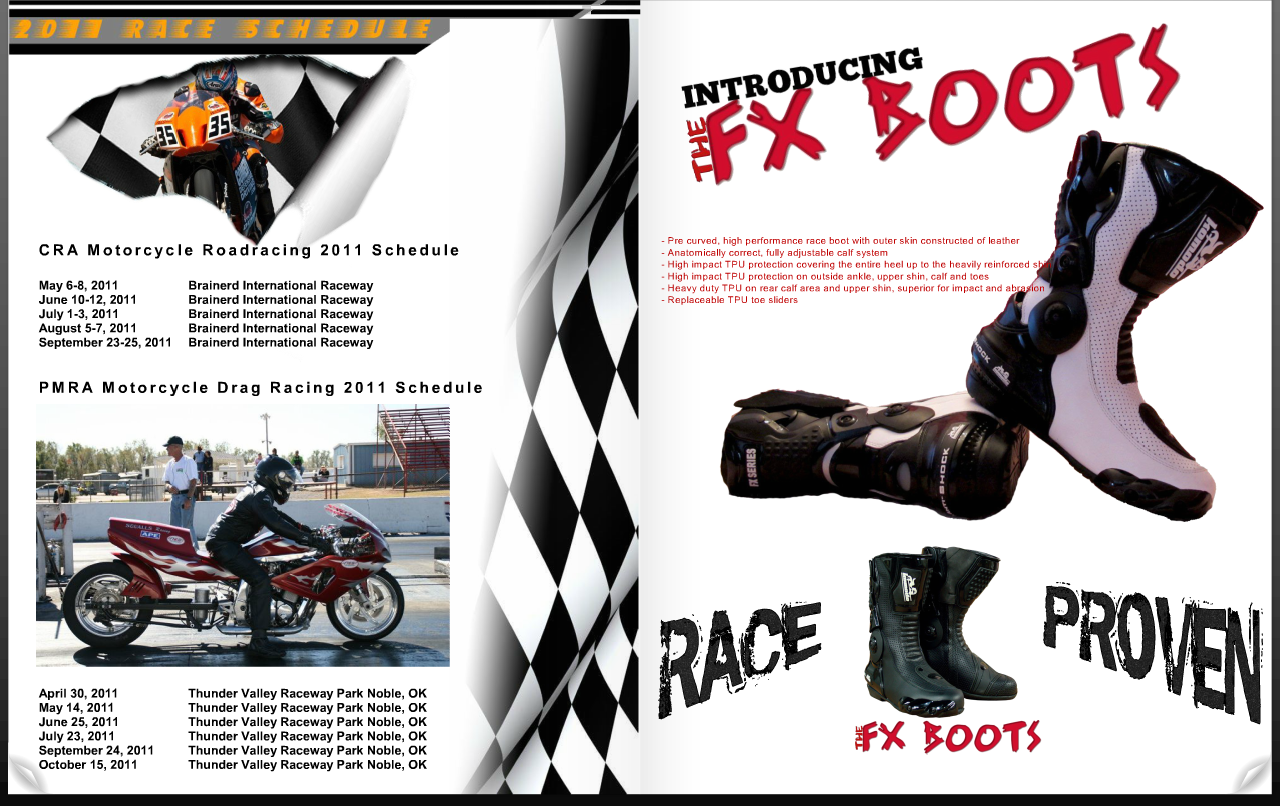
This also allowed for very strategic ways for Komodo Gear to do advertising and letting the customers know what specials they featured as well as any new products they wanted to showcase. Komodo Gear was also able to feature riders who love Komodo Gear products along with their testimonials.